Democrats Abroad - Security Best Practices
Security Checklist
A curated security checklist for DA Leaders and Volunteers with tips to help you protect DA data by improving your digital security.
You can use this checklist to create a self-assessment score of your personal security status. This DA Security Checklist is intended for use by concerned and technically attentive DA leaders and volunteers who are willing to make reasonable and practical improvements to upgrade their personal security practices. The advice provided is intended to be understandable, actionable, and to provide you with relevant and meaningful personal security benefits.
-
Authentication
- Password best practices
- Password manager
- Multi-factor authentication (MFA)
-
Web Browsing
- Avoid Malware
- Reduce tracking
- Privacy focused browsers
-
E-Mail
- Different e-mails for different tasks
- Use encryption
- What to share per e-mail
-
Secure Messaging
- Secure messaging apps
- End-to-end encryption
- Avoid SMS messages
-
Social Media
- Securing Social Media
- Public and Permanent Interactions
- Avoiding Over-Permissioning
-
Home Network Configuration
- Securing a Home Network
- Use a VPN
- Guest Networks
-
Mobile Devices
- Secure your Mobile Devices
- Use Strong Passwords and PINs
- Limit App Permissions
-
Personal Computers
- Secure your Personal Computer / Laptop
- Keep Device Up-to-date
- Disable Voice Assistants
-
Personal Finance
- Sign-up for Fraud Alerts
- Use Virtual Credit Cards
- Use Cash when Possible
-
Human Aspect
- Watch out for Phishing Attacks
- Avoid Pop-up Notifications
- Never Leave Devices Unattended
Notes around implementation
Checkboxes ONLY save state on other pages
Every checkbox needs to have a unique ID, for the state to be persisted.
As this page is only an overview and introduction, IDs were not created and state will NOT be saved.
Road Map and completed tasks
- Create an overview page with global statistics
- Store state of checked items within local browser storage
-
Migrate entire checklist to markdown (only migrated sections are available in the navigation)
Migrated sections
- Authentication
- Web Browsing
- Secure Messaging
- Social Media
- Home Network Configuration
- Mobile Devices
- Personal Computers
- Personal Finance
- Human Aspect
-
Use globally uique IDs for checklist items
- Finalize language and ordering of the checklist items
- Finalize styling
- Create a short list 10-20 of the most essential items and start with that
- Deployment as a static website
- use netifly
- Update public URL -
https://security-checklist.democratsabroad.org - automated deployment on push to
mainbranch
- integration into datatools (if necessary)
Clickable and stored checklists
Currently as a PoC we did a minimal amount "prettifying" of checklist items, e.g.:
- Consider Unique Usernames
Priority: Advanced
Details:
Having different passwords for each account is a good first step, but if you also use a unique username, email, or phone number to log in, then it will be significantly harder for anyone trying to gain unauthorised access. The easiest method for multiple emails is using auto-generated aliases for anonymous mail forwarding. This is where<anything>@yourdomain.comwill arrive in your inbox, allowing you to use a different email for each account (see Mail Alias Providers). Usernames are easier since you can use your password manager to generate, store, and auto-fill these. Virtual phone numbers can be generated through your VOIP provider.
The markdown fo a checklist items is quite straight forward with a few things to note:
Unique IDs
Unique IDs are need for every checkbox item.
The ID is built up of a slug defined in the pages yaml frontmatter along with a short identifier, e.g. <!-- id:<slug>_<identifier> -->
This ID should be static for the lifetime of the checklist item.
If the checklist item is deleted, the ID is then safe to delete.
Having globally unique IDs also allows for one item appearing on multiple pages, but needing only to be check once.
Priority
The priority is used when generating the completion progress bar. And was also used to separate the checklist items into groups. A Final ordering based on priority SHOULD be completed.
Possible future option for checklist item styling
-
Consider Unique Usernames for each account
Priority:AdvancedDetails
Having different passwords for each account is a good first step, but if you also use a unique username, email, or phone number to log in, then it will be significantly harder for anyone trying to gain unauthorised access.
The easiest method for multiple emails is using auto-generated aliases for anonymous mail forwarding.
This is where<anything>@yourdomain.comwill arrive in your inbox, allowing you to use a different email for each account (see Mail Alias Providers).Unique usernames are easier since you can use your password manager to generate, store, and auto-fill these.
Virtual phone numbers can be generated through your VOIP provider.
Progress Bar
The progress bar is handled by css, a few divs and some js.
It shows an overall completion at the outset and when clicked it expands to show the progress of the invididual sections.

Collapsed
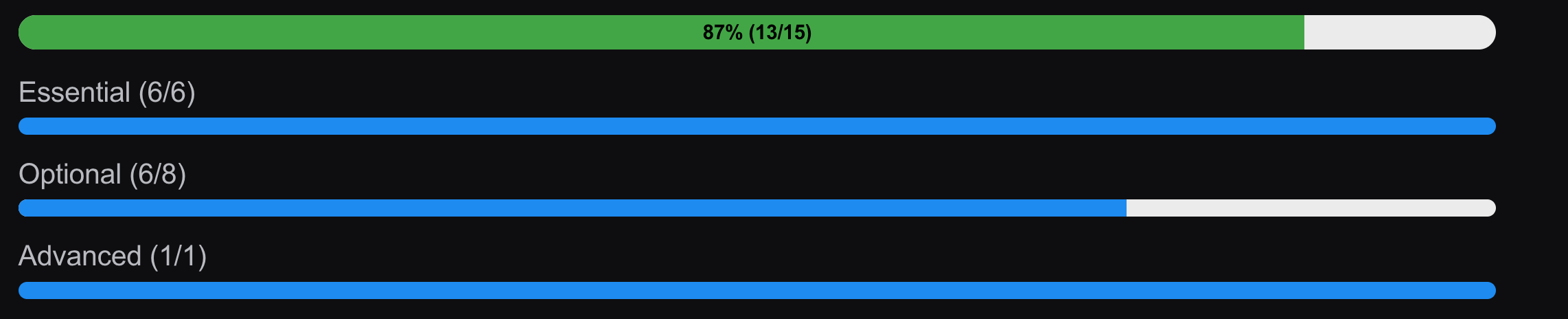
Expanded